

Beam-501B-A23B by default.
To install Mirror and connect it to Reflection, follow the coding agent quickstart. This page explains how Mirror works once it’s running.
Mirror CLI is in early beta, and commands and behavior may change between releases. Run
/help to see the commands in your installation.How Mirror is organized
Runmirror in a project directory to start a Mirror session. The first time you start Mirror in a directory, it asks you to confirm that you trust that directory’s files. That one process holds everything else:
- Workspace. A directory with its own agent and its own conversation. Mirror starts with one workspace for the directory you launched from. You can add more with
/worktree, which creates a separate checkout so that two agents can edit files without getting in each other’s way. See workspaces. - Conversation. The history of prompts, agent replies, and tool calls in a workspace. Mirror saves every conversation in
~/.mirror, so you can resume one later or branch from an earlier turn. - Tools. How the agent acts on your project: reading and searching files, editing them, and running shell commands. Tools run on your machine with your account’s permissions. Connections to services such as Linear or Notion, and extensions, can add more.
- Instructions and skills. Guidance the agent reads before it starts, from
AGENTS.mdfiles and reusable skill directories. See instructions and skills.
The Mirror screen
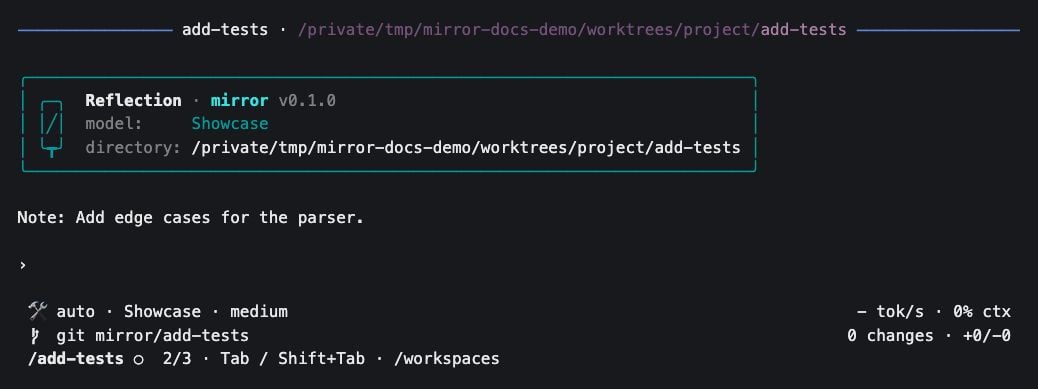
A Mirror session with two other workspaces open.
- Transcript. The conversation so far. Before the first prompt it shows a card with the model and working directory. Use
Ctrl+Tor/viewto switch between full,compact, andextra-compactdetail. - Prompt. Where you type. Extensions can show widgets above or below it.
- Settings line. The approval mode (
manualorauto), the model, and the reasoning effort on the left, and generation speed and context use on the right. - Repository line. The current branch and a count of uncommitted changes.
- Workspace tabs. Shown once you have more than one workspace, with a status indicator for each agent.
Work with the agent
Choose what to approve
By default Mirror runs in manual mode: it pauses before shell commands (including ones that only read, such asls), file writes and edits, connected-service tools, and most tools that extensions add. It shows the call, and you press 1 or Enter to approve, or 2 to reject. Reading and searching files with the agent’s built-in tools never needs approval. Pressing Escape at an approval prompt stops the whole turn, not just that call.
Switch to auto mode to let the agent use every tool without asking. That’s faster, and it suits a project under version control where you’ll review the result. To switch, do any one of these:
- Press
F2to toggle between manual and auto. - Run
/permissionsand choose a mode. - Start Mirror with
mirror --approval-mode auto.
REFLECTION_API_KEY, out of the environment of commands the agent runs.
Conversations
Each workspace has one active conversation. Mirror saves it as you go, so nothing is lost when you exit.Next steps
Workspaces
Run several tasks in parallel, each in its own checkout.
Models and providers
Change the model, reasoning effort, or provider.
Instructions and skills
Give the agent project guidance and reusable procedures.
Reference
Look up commands, shortcuts, launch options, and files.